

In this notebook, we’ll implement anomaly detection in time series data
Prerequisites This tutorial assumes basic familiarity with StatsForecast. For a minimal example visit the Quick Start
Introduction
Anomaly detection is a crucial task in time series forecasting. It involves identifying unusual observations that don’t follow the expected dataset patterns. Anomalies, also known as outliers, can be caused by a variety of factors, such as errors in the data collection process, sudden changes in the underlying patterns of the data, or unexpected events. They can pose problems for many forecasting models since they can distort trends, seasonal patterns, or autocorrelation estimates. As a result, anomalies can have a significant impact on the accuracy of the forecasts, and for this reason, it is essential to be able to identify them. Furthermore, anomaly detection has many applications across different industries, such as detecting fraud in financial data, monitoring the performance of online services, or identifying usual patterns in energy usage. By the end of this tutorial, you’ll have a good understanding of how to detect anomalies in time series data using StatsForecast’s probabilistic models. Outline:- Install libraries
- Load and explore data
- Train model
- Recover insample forecasts and identify anomalies
Important Once an anomaly has been identified, we must decide what to do with it. For example, we could remove it or replace it with another value. The correct course of action is context-dependent and beyond this notebook’s scope. Removing an anomaly will likely improve the accuracy of the forecast, but it can also underestimate the amount of randomness in the data.
Tip You can use Colab to run this Notebook interactively
Install libraries
We assume that you have StatsForecast already installed. If not, check this guide for instructions on how to install StatsForecast Install the necessary packages usingpip install statsforecast
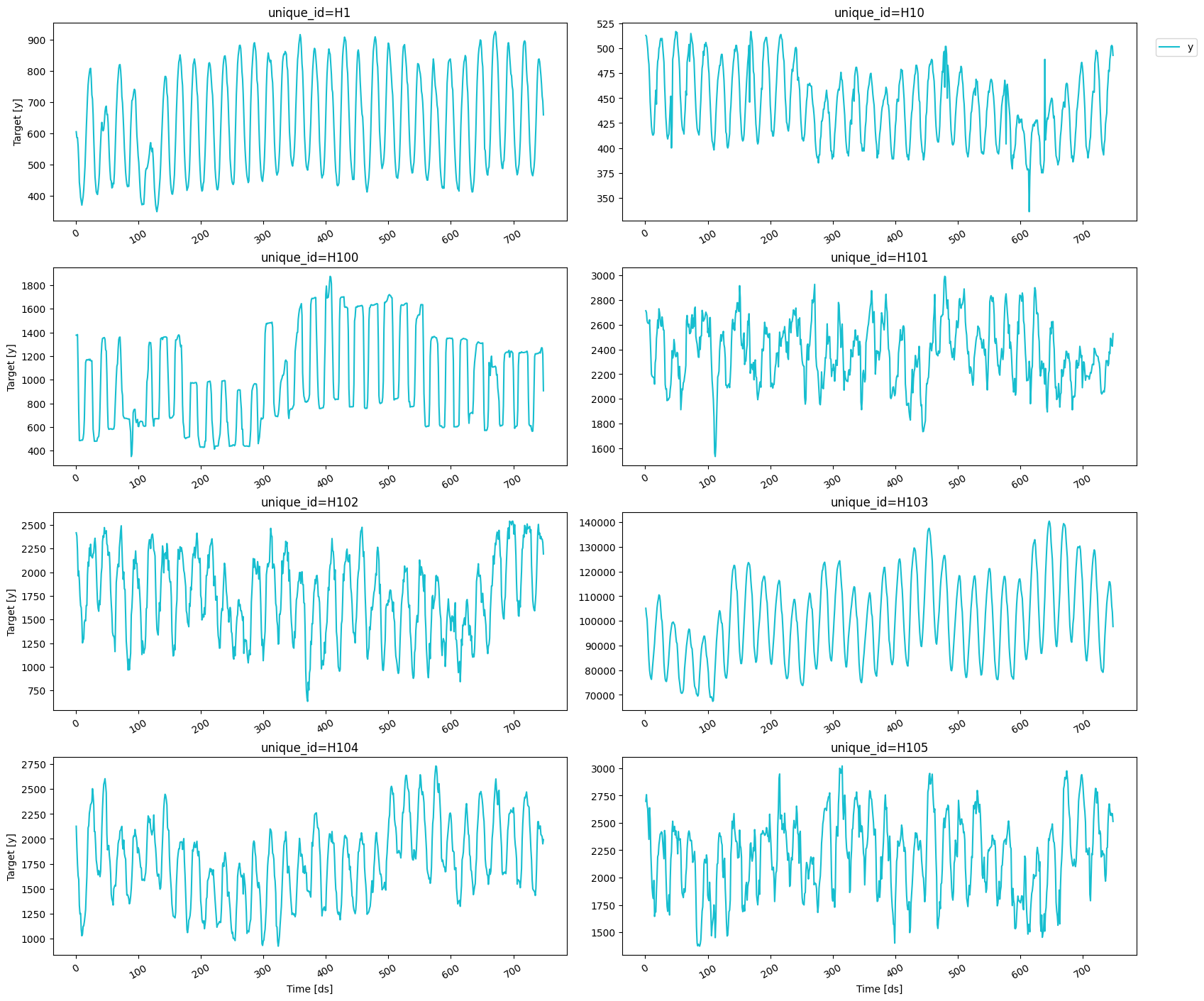
Load and explore the data
For this example, we’ll use the hourly dataset of the M4 Competition.
The input to StatsForecast is always a data frame in long
format with
three columns:
unique_id, ds and y.
unique_id: (string, int or category) A unique identifier for the series.ds: (timestamp or int) A timestamp in format YYYY-MM-DD or YYYY-MM-DD HH:MM:SS or an integer indexing time.y: (numeric) The measurement we wish to forecast.
n_series.
plot_series function from the
utilsforecast package. This function has multiple parameters, and the
required ones to generate the plots in this notebook are explained
below.
df: A pandas dataframe with columns [unique_id, ds, y].forecasts_df: A pandas dataframe with columns [unique_id, ds] and models.ids: A list with the ids of the time series we want to plot.level: Prediction interval levels to plot.plot_anomalies: Whether or not to include the anomalies for each prediction interval.
Train model
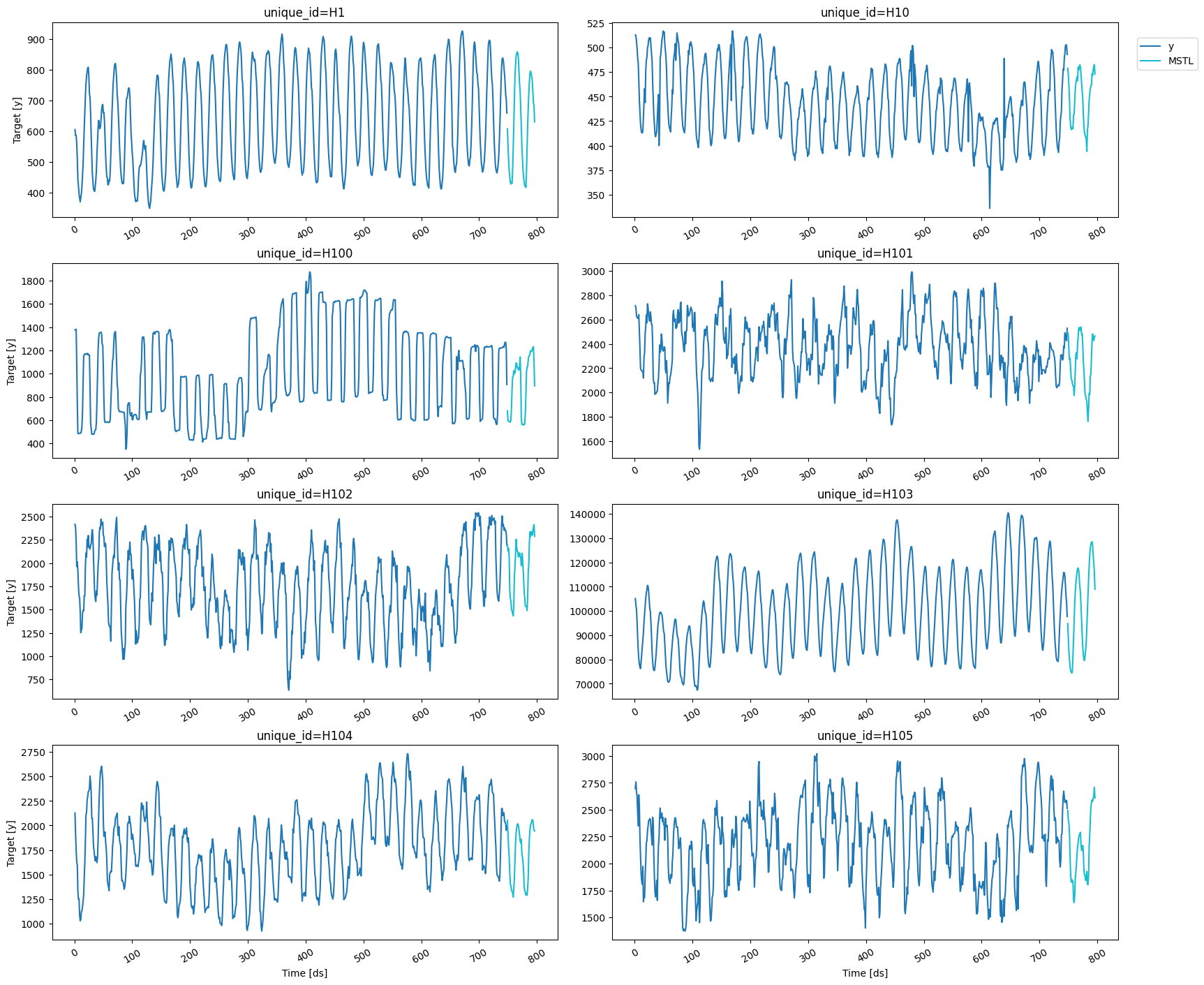
To generate the forecast, we’ll use the MSTL model, which is well-suited for low-frequency data like the one used here. We first need to import it fromstatsforecast.models and then we need to instantiate
it. Since we’re using hourly data, we have two seasonal periods: one
every 24 hours (hourly) and one every 24*7 hours (daily). Hence, we
need to set season_length = [24, 24*7].
models: The list of models defined in the previous step.freq: A string or integer indicating the frequency of the data. See pandas’ available frequencies.n_jobs: An integer that indicates the number of jobs used in parallel processing. Use -1 to select all cores.
forecast method, which requires the following arguments:
df: The dataframe with the training data.h: The forecasting horizon.level: The confidence levels of the prediction intervals.fitted: Return insample predictions.
level and set fitted=True since
we’ll need the insample forecasts and their prediction intervals to
detect the anomalies.
We can plot the forecasts using the
plot_series function from before.
Recover insample forecasts and identify anomalies
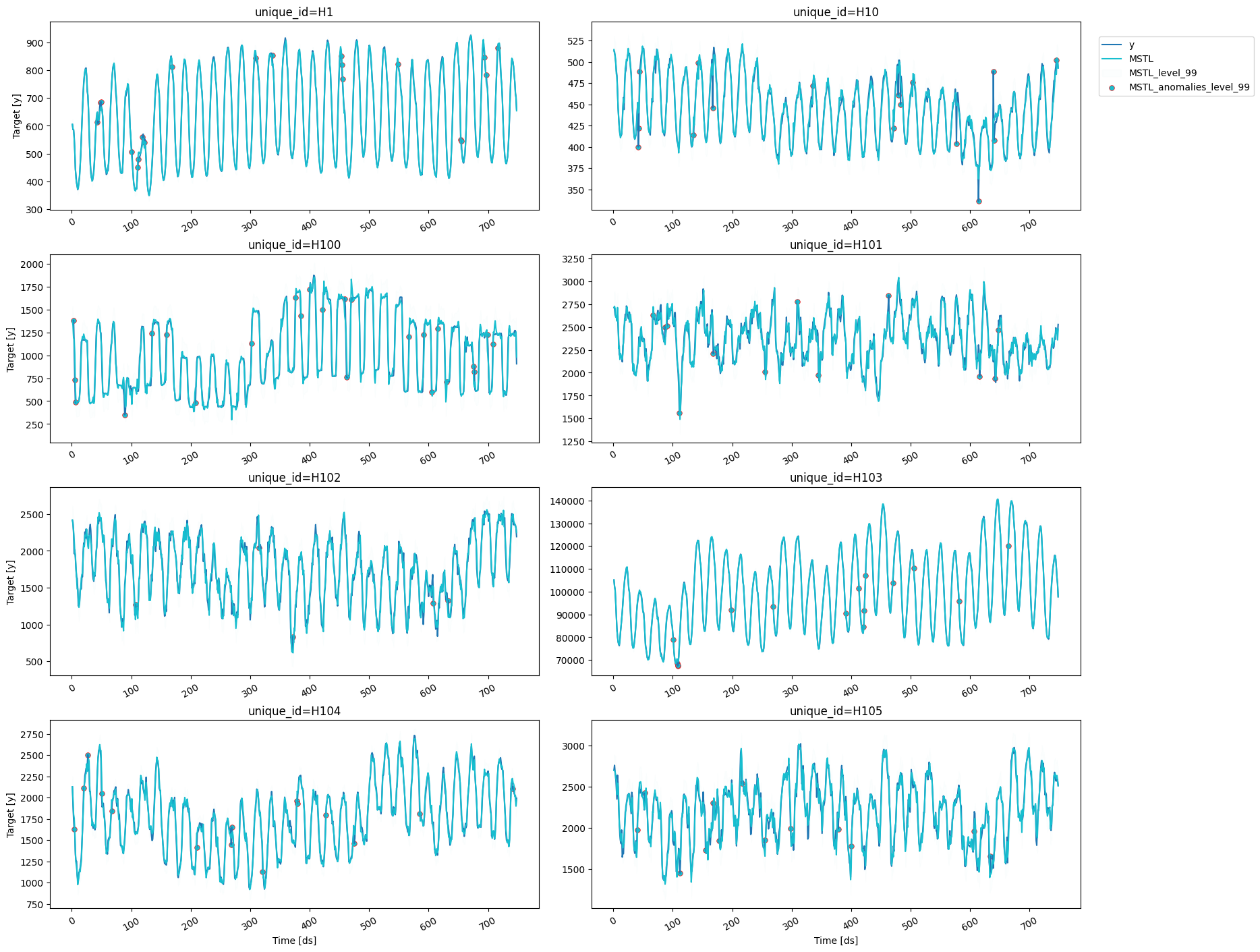
In this example, an anomaly will be any observation outside the prediction interval of the insample forecasts for a given confidence level (here we selected 99%). Hence, we first need to recover the insample forecasts using theforecast_fitted_values method.
We can now find all the observations above or below the 99% prediction
interval for the insample forecasts.
We can plot the anomalies by setting the
level and the
plot_anomalies arguments of the plot_series function.
ids argument to
select one particular time series, for example, H10.
